
An Easy Setup For WordPress in a Proxmox Container
I can Barely Containerize my Excitement
I’ll walk through how I made this website because information should be free
I’ll cut to the chase because I don’t have time for lengthy backstories. This guide is for those who want to run snappy websites on their Proxmox servers with Cloudflare tunnels. This is the easiest way that I’ve found to get online and this website is an obvious example of the end result. I’m no expert so take this as more of a “look what I did”. Feel free to berate me in the comments if I get anything wrong (just don’t say anything about my mother).
Prerequisites:
For this tutorial I assume you have a Proxmox server, connected to the internet, located on Earth. You might be able to pull this off without a domain (resource?) but they are so cheap you might as well do it right. The “.top” domains through NameSilo or similar run you >$5/yr and they make this process much easier. For this tutorial I assume you have a domain setup in a free Cloudflare account (How?).
For people with better things to do:
Setting up the Ubuntu LXC Container
The one click install just doesn’t work for Linux users
Ubuntu server is my preferred Linux distro but when I went to setup a new container for this tutorial the 24.XX templates didn’t work. If you get an “unsupported version” error you need to add the version to the LXC setup file:
nano /usr/share/perl5/PVE/LXC/Setup/Ubuntu.pm
Add to list:
'24.10' => 1, # oracular
'24.04' => 1, # noble

//Save and Exit (CTRL+X, Y, Enter)
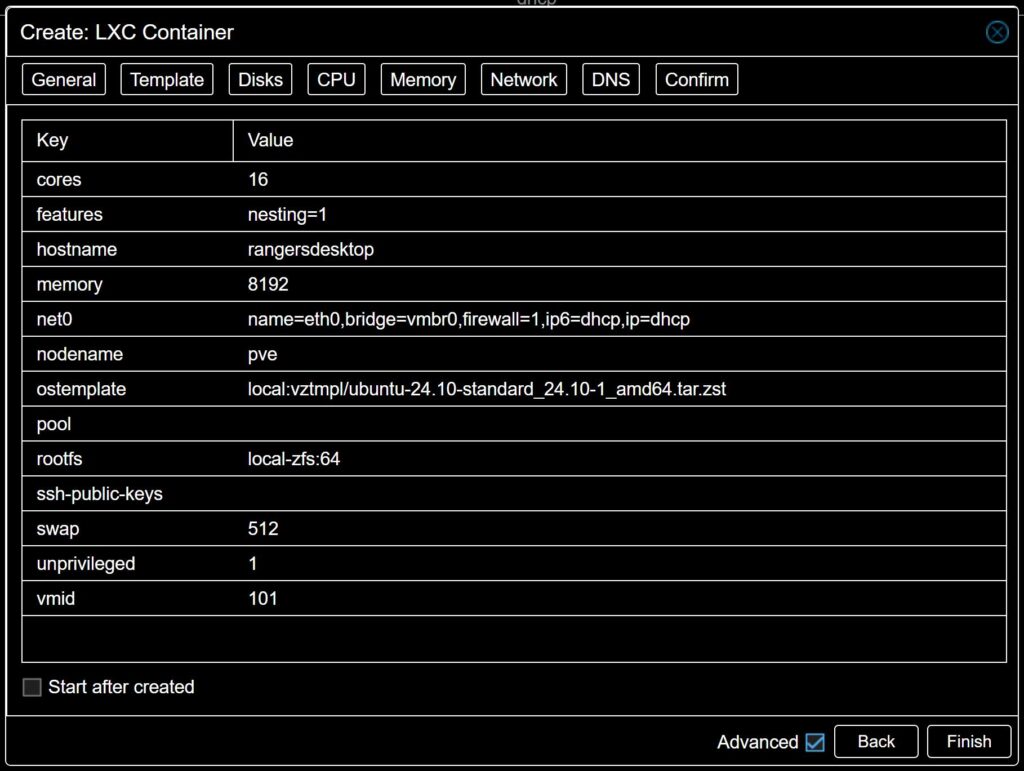
You might need to restart Proxmox but then you should be able to setup the container as normal. Leave “Unprivileged” and “Nested” checked and change IPv4 and IPV6 to DHCP to avoid issues.
Cloudflare + Redis + LAMP = CRAMP?
That’s a misnomer because this is one of the easiest ways to get good results
Time to install the LAMP stack and everything else WordPress needs. Redis will help speed up your site with caching later on and Cloudflare will get you online. You could setup ssh but I didn’t bother and just pasted all these commands into the LXC console (login as root):
apt update && apt upgrade -y
One long command that should install everything you need (this took 3min):
sudo apt install -y apache2 mysql-server php php-mysql libapache2-mod-php php-gd php-curl php-dom php-imagick php-mbstring php-zip php-intl redis php-redis php8.3 php8.3-cli php8.3-common php8.3-curl php8.3-mbstring php8.3-zip php8.3-intl php8.3-xml wget
Now install WordPress:
wget https://wordpress.org/latest.tar.gz
tar -xzf latest.tar.gz
mv wordpress/* /var/www/html/
chown -R www-data:www-data /var/www/html
chmod -R 755 /var/www/html
Configure SQL:
mysql -u root -p
//Enter root password
Create database [change usr/pass]:
CREATE DATABASE wordpress;
CREATE USER 'USRNAME'@'localhost' IDENTIFIED BY 'PASSWD';
GRANT ALL PRIVILEGES ON wordpress.* TO 'USRNAME'@'localhost';
FLUSH PRIVILEGES;
EXIT;
Configure WordPress [change usr/pass]:
mv /var/www/html/wp-config-sample.php /var/www/html/wp-config.php

nano /var/www/html/wp-config.php

define('DB_NAME', 'wordpress');
define('DB_USER', 'USRNAME');
define('DB_PASSWORD', 'PASSWD');
define('DB_HOST', 'localhost');

//CTRL+X, Y, Enter
Setup Apache2:
sudo a2dissite 000-default.conf
sudo nano /etc/apache2/sites-available/wordpress.conf
Paste this into the file and save:
<VirtualHost *:80>
    ServerAdmin webmaster@localhost
    DocumentRoot /var/www/html
    <Directory /var/www/html>
        Options Indexes FollowSymLinks
        AllowOverride All
        Require all granted
        DirectoryIndex index.php index.html
    </Directory>
    ErrorLog ${APACHE_LOG_DIR}/error.log
    CustomLog ${APACHE_LOG_DIR}/access.log combined
</VirtualHost>
Apply Apache Changes:
sudo a2ensite wordpress.conf
sudo a2enmod rewrite
sudo systemctl restart apache2
Change fields in the PHP configuration:
nano /etc/php/8.3/apache2/php.ini

// In Resource Limits // (or press CTRL+F and type "memory_limit")!
memory_limit = 1024M

// In Data Handling //
post_max_size = 8192M

// In File Uploads //
upload_max_filesize = 8192M
Apply the config:
sudo service apache2 restart

//to see your IP:
ip a
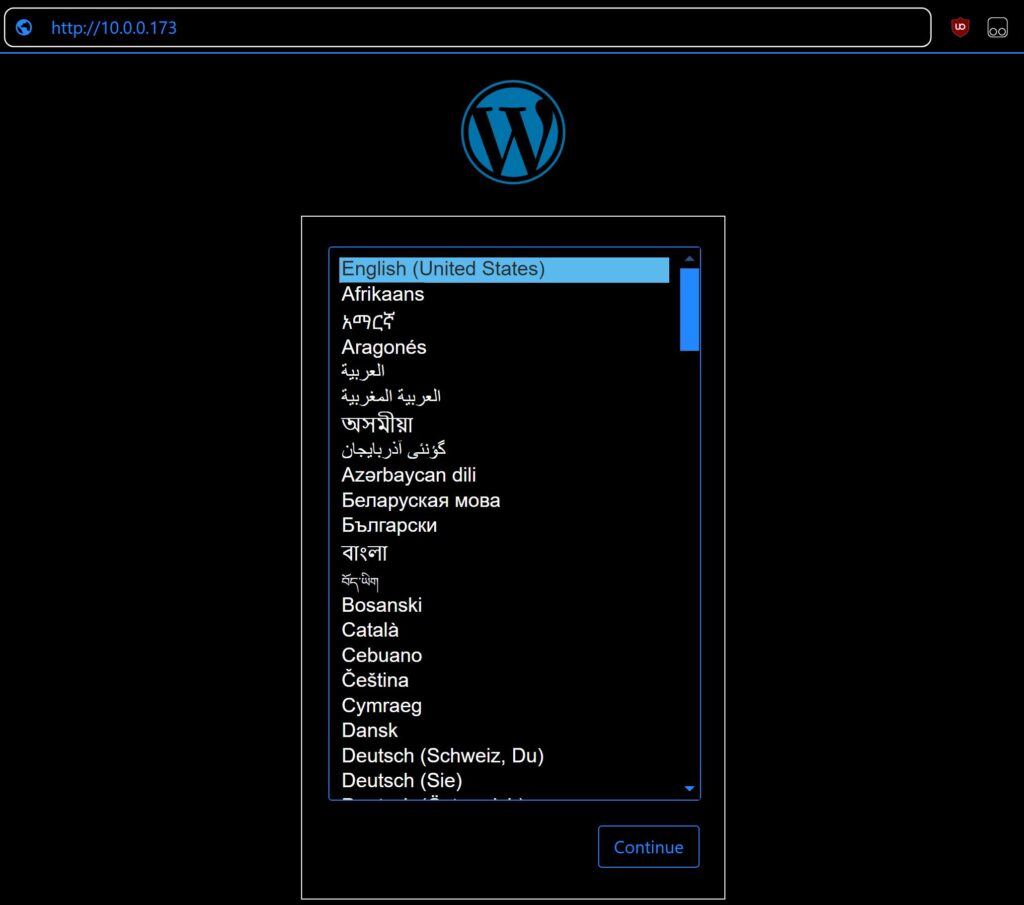
Now open a browser and navigate to your container’s IP to install WordPress!
Great! So We're Done Right?
Nope, your suffering has only just begun!
Time to get online! You will need to install the Cloudflared connector somewhere on your server so your tunnel has an entry point to your network. I personally use the TrueNAS Cloudflared app but Cloudflare offers a one line install for most platforms (docs). You could install the connector on your Proxmox host so it always stays up but generally you would want to run it in docker or in a separate container.
Now that your tunnel is setup and has a “Healthy” status we can add WordPress. Go to the “Public Hostnames” tab and create a new hostname for your WordPress container. Select your domain, “http”, and enter your container’s IP with port 80.
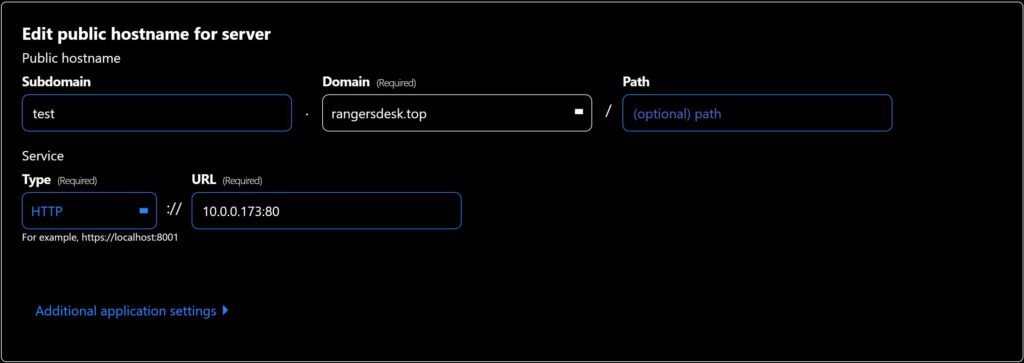
Once you do this you should be able to access your site with your domain and https! (it’s that easy)
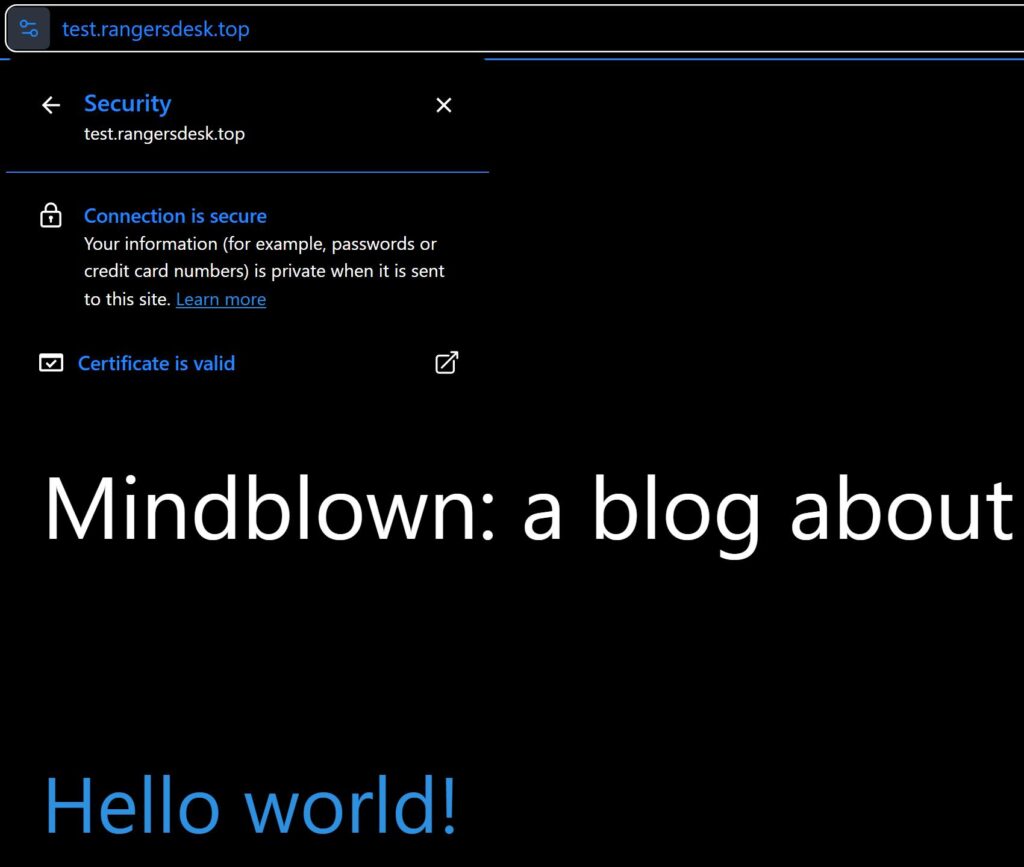
**Well maybe its not just that easy. I when I tried to access my dashboard (https://domain.com/wp-admin), I got: “ERR_TOO_MANY_REDIRECTS”. Or maybe you can access your dashboard but the layout is messed up. These issues stem from your site URLs and you can fix them with these steps:
nano /var/www/html/wp-config.php

// Add these lines before "That's all, stop editing!":

define('WP_HOME','https://YourDomain.com');
define('WP_SITEURL','https://YourDomain.com');
if (isset($_SERVER['HTTP_X_FORWARDED_PROTO']) && $_SERVER['HTTP_X_FORWARDED_PROTO'] === 'https') {
    $_SERVER['HTTPS'] = 'on';
}

// CTRL+X, Y, ENTER //

sudo service apache2 restart
Hopefully now you should be able to access /wp-admin properly so we can move on to…
Death by a Thousand Plugins
The plugins I use and why (in order of importance?)
I’m skipping themes because its up to you to add your personal touch to your website. My main theme is “Rits Blog” but then I have Astra installed to further customize it. Just find something that looks nice but is easy to work with if you plan on posting regularly.
Anyway, Plugins! WordPress is great if you want to get something going but the moment you want to veer off that narrow path you’ll either be met with a paywall or have to figure it out yourself (Gasp!). Here are all the plugins I currently use:
1. Redis Object Cache – We installed Redis during the setup for this plugin. It works at the database level by caching database queries and objects in memory. It works especially well on dynamic websites but I still notice a speedup on my mostly static site.
2. Elementor – This website builder plugin lets me make my website appealing with “minimal” effort. I make weekly posts and this plugin makes it easier to get them done at 3AM.
3. WS Form LITE – A simple form tool that I used to make my Contact page (with help from some additional CSS). It is easy to integrate with Cloudflare too.
4. Open Graph and Twitter Card Tags – This plugin lets you post a link to your website with a preview of your featured image. It is more eye-catching and trustworthy compared to a bare link. You will see the menu to add a featured image when you create a post. (example)
* I try to avoid cache plugins like WP-Super Cache because I found they slow down my site. Redis should handle all the caching your website needs. You might also find that Redis breaks most backup plugins but Proxmox has backups that are better anyway.
Ok.. I think that's it?
Well, probably not but this is a great start
If I went over all the nuances we’d be here all day (I already spent one on this post anyway). Hopefully I didn’t miss anything but I do check the comments at least once a week when I make my post (just be warned I remove URLs). You can do some pretty cool things with WordPress even if my site isn’t a shining example of it. Hopefully this tutorial was helpful and obviously I’m not getting paid anything to write it. I’m just trying to open up this information so if it helped you then let me know in the comments.
Thanks for reading! – Ranger
Works great. Used twice and hasn’t blown up my computer yet, so it’s probably good.
Lets Go! Maybe my jokes weren’t corny enough
I love you so much I would give you my head 😉
The url part fixed two problems at once
p.s. my config was another directory in, /wordpress
? Glad I solved your issue. Hopefully my tutorial isn’t out of date already!
Thanks, two prior attempts at wordpress templates (helper script and turnkey), turned out as a waste of time. I got the partial page loads (text but no css or images). I also just started using nginx reverse proxy manager at about the same time and thought it was causing the issues. Your solution worked out better, especially the part about “**Well maybe its not just that easy. ” I wasted a couple days trying to avoid the manual configuration, and in the end your solution was quicker and it kept me on my perfered distro of ubuntu server. Thanks
I did a VM install on Ppoxmox of the Turnkey Linux WordPress Appliance from .iso and that turned out to work more-or-less as intended, not a waste of time. But with this one under my belt, I have to say I like it somewhat better – it feels like I have more control over upgrades and such. I’m looking to try this method using an Alpine base container (in part to put systemd aside).
I didn’t realize there was a turnkey! I’m glad my tutorial could add some value
Doing it with an Alpine LXC base also worked, with a few adjustments. I will aim to write it up on one of my WordPress blogs.
Sounds good. Get that info out there!
Howdy! I just want to offer you a huge thumbs up for the great
info you have right here on this post. I’ll be coming back to your web
site for more soon.